
Prefer to listen? Hear Lydia and me talk through this post on the podcast (5 min).
Why Bother?
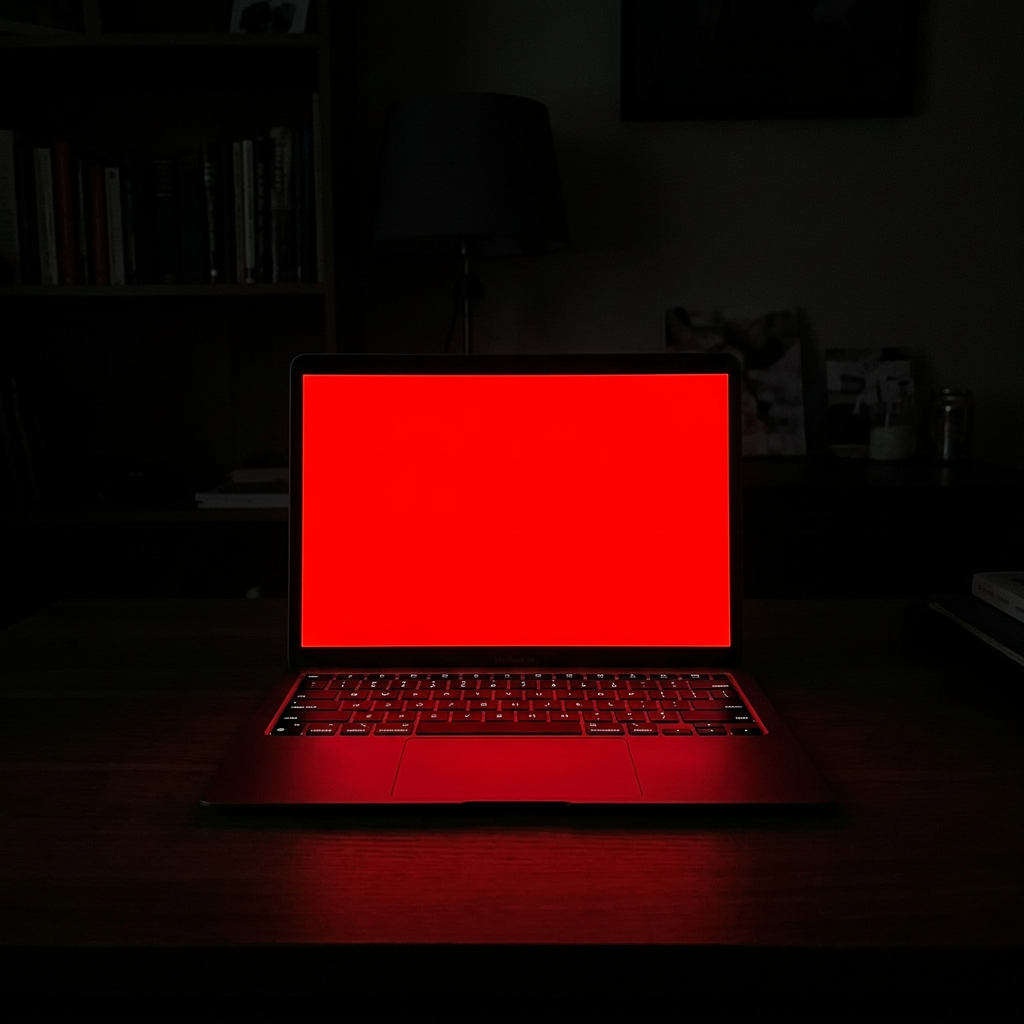
Figuring out how to make Mac screen red light for better sleep starts with understanding why it matters. Blue light suppresses melatonin — the hormone that signals your body it’s time to wind down — for roughly twice as long as green light, and it can push your circadian rhythm back by up to three hours. Red light doesn’t do that. Studies on red versus blue screen exposure before bed have found melatonin levels, and sleep afterward, stay close to normal. Switching your Mac to a deep red tint in the evening is a simple way to keep your body on schedule while still being able to use your computer before bed. (Harvard Health) (Sleep Foundation) That’s really the core of it — you protect your melatonin without giving up your evening screen time.
Part 1: How to Make Mac Screen Red Light
Here’s how to set it up so your Mac screen turns red every night, in under a minute:
- Click the Apple menu in the upper-left corner.
- Select System Settings.
- Click Accessibility in the left sidebar.
- Under Vision, click Display.
- Scroll down to Color Filters.
- Turn on Color Filters.
- Next to Filter type, select Color Tint.
- Click the colored box next to Tint.
- Select a deep red color.
- Adjust the Intensity slider until the screen is as red as you want it.
Your Mac will remember the red color and intensity you selected. Apple documents these Color Tint and Intensity controls under Accessibility → Display → Color Filters. (Apple Support)
Part 2: Add a Silent Shortcut to the Menu Bar
Next, set up a one-tap shortcut so you don’t have to dig through System Settings every night to turn your Mac screen red for sleep:
- Open System Settings.
- Click Menu Bar in the left sidebar.
- Click Add Controls.
- Find Accessibility Shortcuts.
- Choose Add to Menu Bar.
An Accessibility icon will now appear near the upper-right corner of your Mac screen. Apple supports adding Accessibility Shortcuts directly to the menu bar or Control Center. (Apple Support)
How to Turn Your Mac Screen Red for Sleep, On or Off
Once that shortcut’s in place, this is how to make Mac screen red light appear (or disappear) in two clicks:
- Click the Accessibility icon in the upper-right corner of the menu bar.
- Click Color Filters.
- Click Color Filters again whenever you want to return the screen to its normal colors.
Important
Avoid using Option–Command–F5 or triple-pressing the Touch ID button. On some Macs, those methods open the Accessibility Options panel and loudly announce: “Accessibility Options.” Using the menu-bar Accessibility icon lets you toggle the red screen without opening that spoken panel. Skipping that shortcut and digging through System Settings every night is exactly the kind of friction that keeps people from bothering to turn their Mac screen red for sleep at all.
Beyond the Mac
The same trick for how to make Mac screen red light works well beyond the Mac, too. On my iPhone and iPad, I’ve mapped the triple-click side/Touch ID button to Color Filters, so I can flip into red mode just as fast as on the Mac. A few other people have written good walkthroughs on setting that up if you want to do the same:
- Optimize Your Biology — How to Automate Red Light Mode on iPhone (Triple-Click Trick)
- Gadget Hacks — Keep Your Night Vision Sharp with the iPhone’s Hidden Red Screen
And on my Apple Watch, I use the red version of the Nike Digital face, so even a glance at my wrist before bed stays in the same low-stimulation red palette. The same evening wind-down is also why I switched to earbuds built for side sleeping — I wrote up the full case for the Soundcore Sleep A30 Special here. Learning how to make Mac screen red light is just the start — it’s worth carrying that same red-light habit across every screen you look at before bed.
Whatever device you’re on, that’s the whole point of learning how to make Mac screen red light for sleep: less blue light, more melatonin, better rest.
Pro tip: For more tech tweaks like this, subscribe here — pick Tech, Wellness, or whichever categories interest you, and I’ll leave out the rest.
You Might Also Like
- Transform Your Day with Guided Christian Meditation
- Desperate for Sleep? How to Reset Sleep Hygiene Tonight
- Ozlo Sleepbuds for Side Sleepers: My Honest Sleepbuds 2 Review
Follow along on Instagram: https://www.instagram.com/saulbarden
Discover more from SaulBarden.com
Subscribe to get the latest posts sent to your email.

4 comments
[…] you want more tips for winding down, I’ve written about making your Mac screen red at night and my favorite sleep earbuds for side sleepers. Both fit naturally into a routine like […]
[…] How to Make Mac Screen Red Light for Better Sleep […]
[…] How to Make Mac Screen Red Light for Better Sleep […]
[…] Full write-up, sources, and links: https://saulbarden.com/2026/07/11/how-to-make-mac-screen-red-light-for-better-sleep/ […]